DLT Node setup on Windows
Installing an Ixian DLT Node on Windows
Prerequisites
- Operating system: Windows Server 2022 or higher, Recommended Windows Server 2025
- Alternatively: Windows 10 or higher, Recommended Windows 11
- RAM: at least 16 GB
- CPU: i7/i9/Xeon or AMD equivalent processor with at least 2GHz and at least 8 CPU threads
- Free Disk Space: 1.5 TB+, 2 TB+ Recommended
- Internet Connection Speed: 50 Mbps symmetrical or higher, 100 Mbps recommended
Additional requirements
- Ability to forward a port from the public internet to the machine running the DLT Node. (Default port is TCP 10234.)
- Install the dotnet 8.0 SDK following the guide here: DotNet Installation Guide.
Obtaining the software
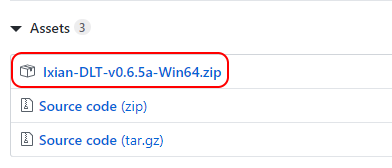
Visit the Ixian Github Releases page and obtain the latest available version as a ZIP package. The release file is available in the "Assets" section of each release announcement.
Running the software
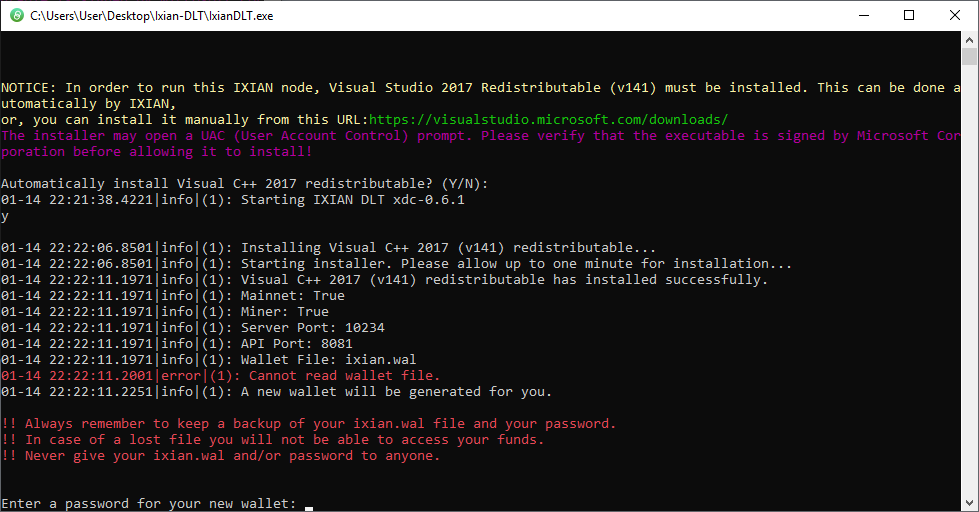
Unpack the archive and start the node by double-clicking the IxianDLT executable, or by issuing the command IxianDLT.exe from a console window. The output should look like this:
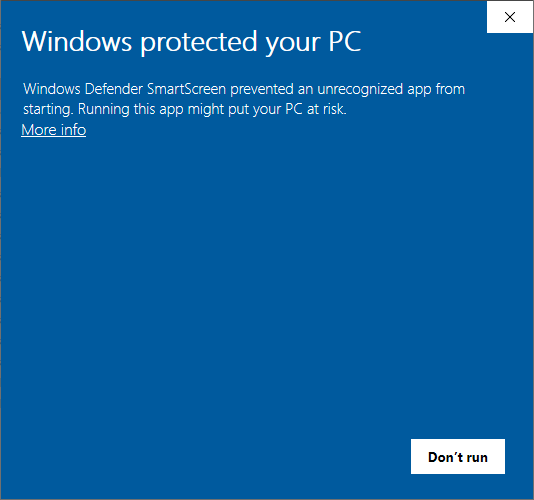
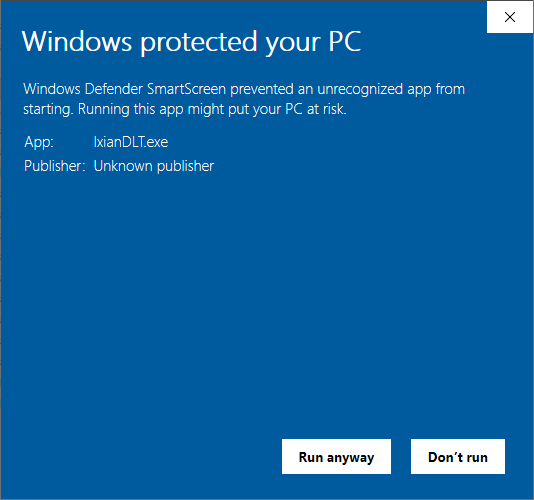
Note: When starting Ixian DLT software on Windows operating systems for the first time, a Windows Defender SmartScreen might pop up that looks like the image below. You have to click on "More info" and then "Run anyway" to proceed. This is expected and occurs because Ixian does not yet have a code signing certificate.
Creating a wallet
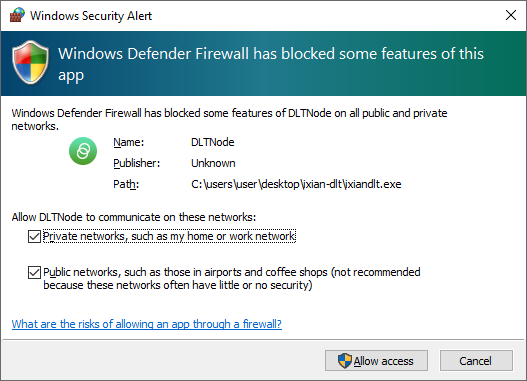
If this is the first time that you're starting Ixian DLT, a new wallet will be generated for you. You have to set your new wallet's password to proceed. This password will be used to encrypt the ixian.wal wallet file and will be required every time you start the Ixian DLT node. Additionally, if this is the first time that you're starting Ixian DLT, a firewall window may pop-up (as seen on the image below). Select private and public networks and click "Allow access".
It is recommended to periodically copy the wallet to a safe location, preferably to an offline media (USB Key), or a different machine. The file is encrypted using AES-256. The wallet file is called ixian.wal.
Verifying the status of the DLT Node
While the node is running, it will display a logo and some basic information in the command window. Please do not close this window, as closing it will cause the DLT Node to shut down.
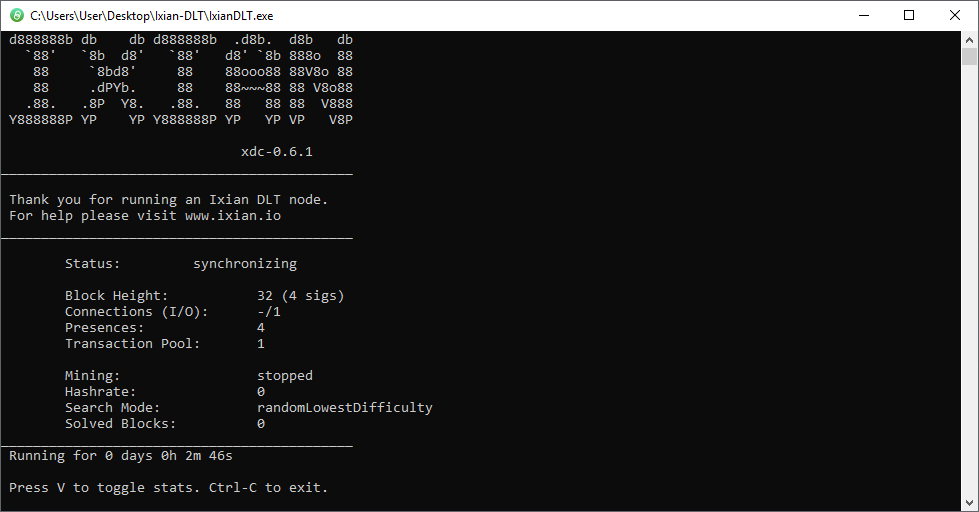
When the Ixian DLT Node first starts, the status text will display synchronizing while the software is retrieving the required information from the DLT network. When this process has been completed, the status text will change to active.
If the DLT Node is shut down and later restarted, it will have to synchronize again, but since most of the data will already be stored on the local disk, the synchronization phase will be much shorter.
Using your Ixian wallet
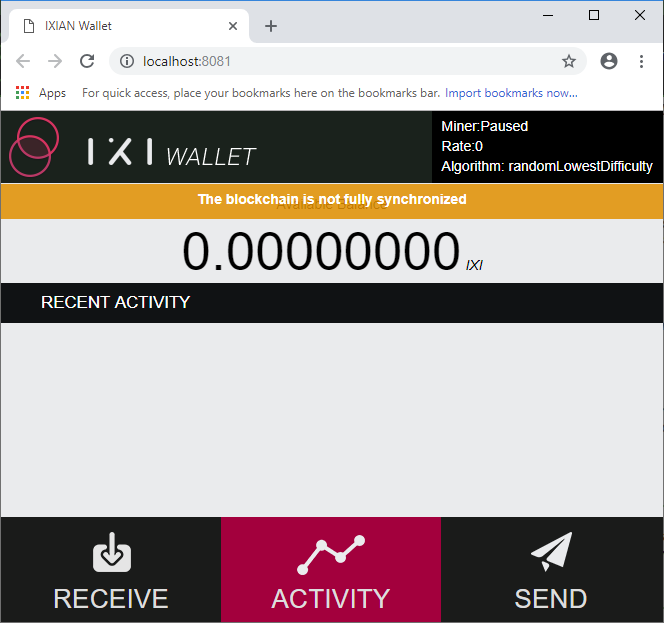
In order to interact with the running DLT Node and use the built-in wallet software, open a web browser and navigate to http://localhost:8081.
If you have configured a different API Port, then change the port number in the link like so: http://localhost:PORT_NUMBER.
The Ixian built-in Wallet looks like this:
Upgrading the DLT Node software
When a new version is released, you can upgrade the software using the following checklist:
Note: It is recommended to backup the wallet file ixian.wal before performing any upgrade or changing any settings on the command line.
- Shutdown the Ixian DLT Node.
- Obtain the new release package from the Ixian Releases Github page.
- Extract the contents of the release package and overwrite files.
- Start the Ixian DLT Node again. The node will use the existing wallet file and downloaded data, so it will not need to generate a new wallet or synchronize again.
Configuration
See DLT Node Configuration options for details.